
Why Multi-Factor Authentication Matters for Growing Organisations
A password is only as secure as the weakest place it has ever been used.
Many people reuse passwords across different services. Credentials are also regularly exposed through data breaches affecting platforms staff may use in their personal lives. Once an email address and password combination is exposed, attackers can automatically test it against business services such as Microsoft 365, Google Workspace, finance platforms and remote-access tools.
Multi-factor authentication, often shortened to MFA, changes this.
Even when an attacker knows a password, MFA requires a second confirmation step that only the genuine account owner should be able to complete. It is one of the most effective security controls available to growing organisations, and it does not require expensive tools or a dedicated internal IT team to introduce.
Why passwords alone are no longer sufficient
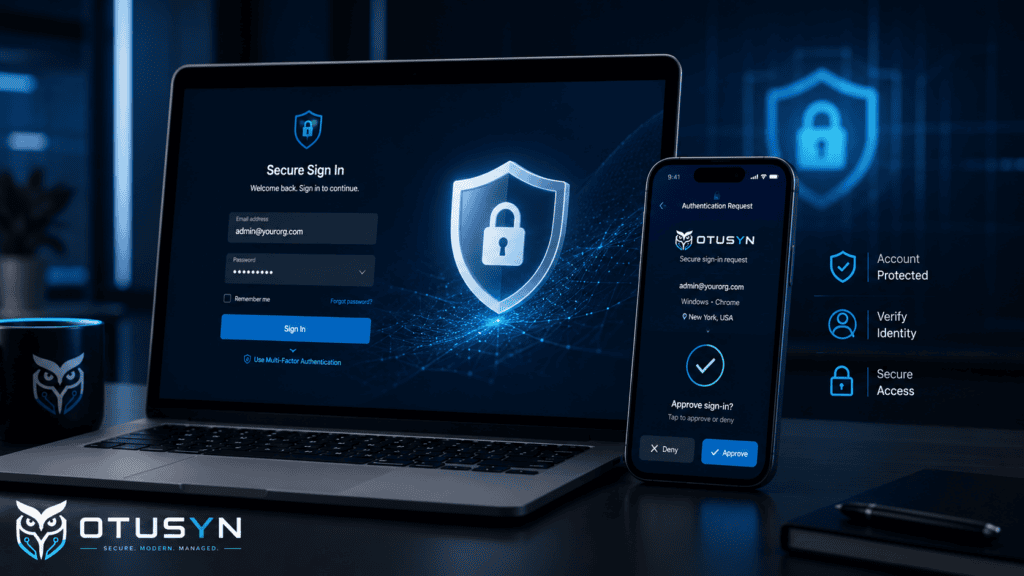
Passwords are still important, but they are no longer enough on their own.
The challenge is not simply that people choose weak passwords. Passwords exist in a much wider environment than any organisation can fully control. A password may be reused, disclosed through a breach, guessed, shared accidentally or captured through a phishing email.
Phishing remains one of the most common routes used by attackers. A convincing email or fake login page can persuade someone to enter their details without realising that they are handing them over to a criminal.
Antivirus software and email filtering are important, but they do not stop every phishing attempt. MFA provides another layer of protection when a password is exposed.
It does not remove phishing risk completely, but it makes stolen credentials far less useful. An attacker who has a valid password should still be unable to sign in without completing the second verification step.
How MFA works in practice
MFA requires more than one form of verification when someone signs in.
This usually combines:
- Something you know, such as a password
- Something you have, such as a mobile phone or security key
- Something you are, such as a fingerprint or face recognition check
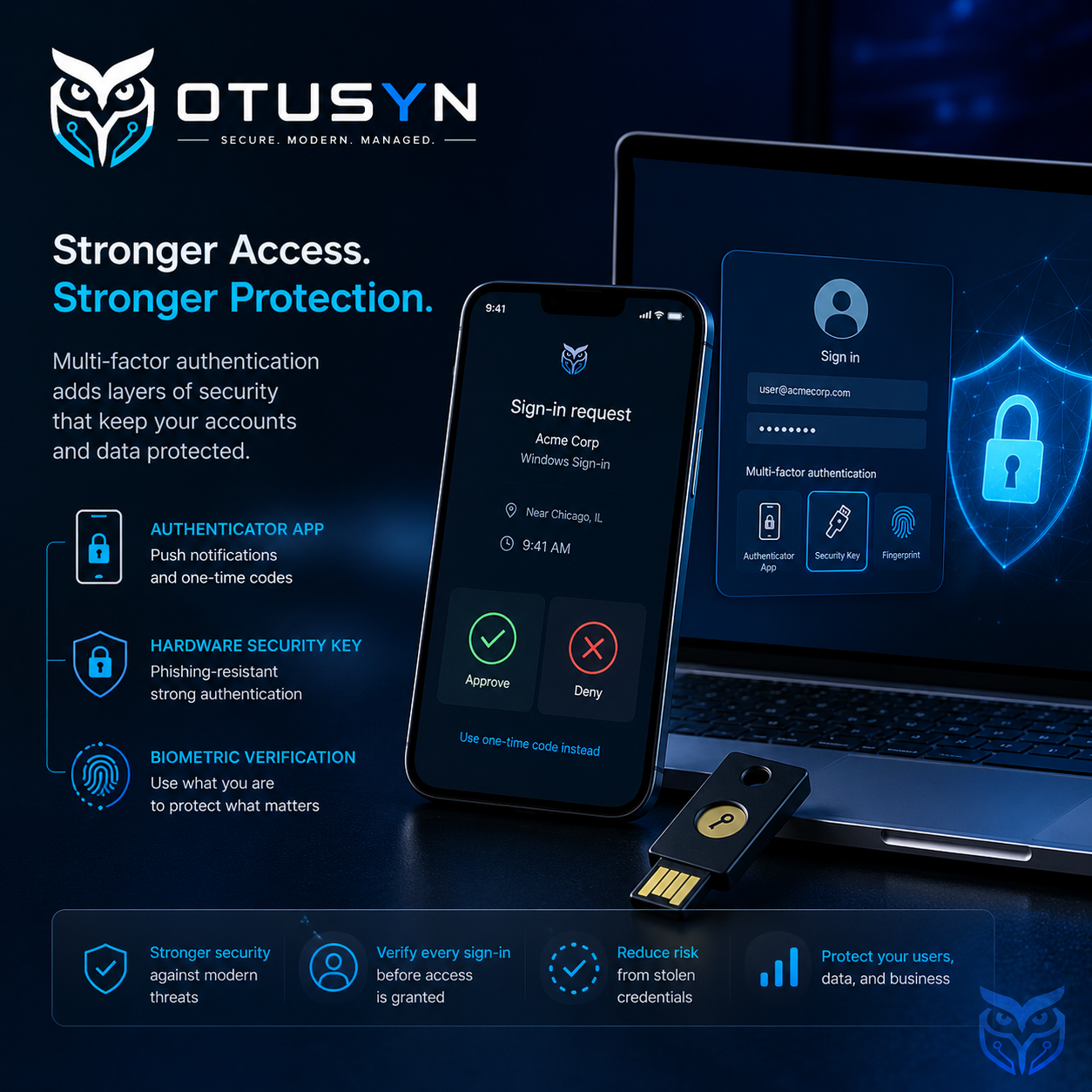
For most organisations, the second factor is usually one of the following:
Authenticator app code
An authenticator app, such as Microsoft Authenticator or Google Authenticator, generates a time-sensitive code. The code usually changes every 30 seconds.
This is a strong and widely supported option for business accounts.
Push notification
A user receives a notification on their phone asking them to approve or deny a sign-in attempt.
This is simple for users and works well when combined with number matching, where the user must enter a number shown on the sign-in screen before approving the request.
Hardware security key
A hardware key is a physical USB, USB-C or NFC device used to confirm a sign-in.
This is particularly useful for administrator accounts, high-risk users or people who cannot use a smartphone for work.
SMS verification code
An SMS code is sent to a mobile number by text message.
This is better than relying on a password alone, but it is generally weaker than an authenticator app or security key. SMS should be treated as a starting point for lower-risk accounts rather than the preferred method for email, administrative or financial systems.
For most small and growing organisations, an authenticator app provides the best balance between security, cost and ease of use.
Which accounts should be protected first?
Not every account carries the same level of risk.
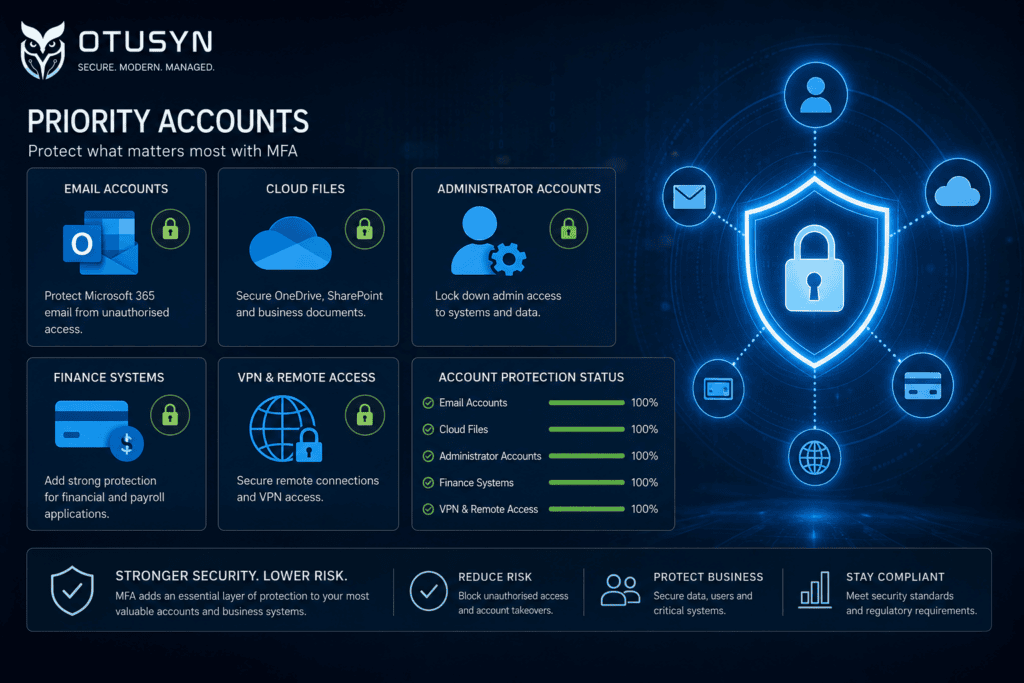
A practical approach is to start with the accounts where a compromise would create the biggest impact.
1. Email accounts
Email is often the master key to the organisation.
Password-reset links for many services are sent by email. If an attacker gains access to an inbox, they may be able to reset passwords for other systems and take control of additional accounts.
2. Microsoft 365 or Google Workspace
Microsoft 365 and Google Workspace often hold the most valuable business information, including email, files, calendars, contacts, meetings and internal communications.
They are common targets for credential-based attacks and should be prioritised early in any MFA rollout.
Learn more about OTUSYN’s Microsoft 365 support.
3. Administrative accounts
Any account that can create users, change security settings, access sensitive data or manage systems should have MFA enabled as a priority.
Administrator accounts should ideally use stronger authentication methods, such as an authenticator app with number matching or a hardware security key.
4. Finance and payroll systems
Accounts that can access payroll information, supplier bank details, invoices or payment systems create a direct financial risk if compromised.
MFA can help reduce the risk of fraudulent payments, data theft and unauthorised changes.
5. VPN and remote-access tools
Remote-access accounts can provide a route into internal systems and business data.
MFA should be enabled for VPN platforms, remote desktop services, cloud administration portals and other tools used to access systems from outside the office.
Once these priority accounts are protected, MFA can be expanded to all users as part of normal onboarding and account-management processes.
Common concerns about MFA
Introducing MFA can create concerns, especially when staff are unfamiliar with it. Most objections can be managed with clear communication and a structured rollout.
“It will slow people down.”
For most users, MFA adds only a few seconds to a sign-in.
Many business applications remain signed in during the working day, meaning users may only need to approve a sign-in once per device or when they access a new location or application.
Most people adjust quickly and stop noticing the additional step.
“Our staff will not be able to manage it.”
The main challenge is usually the initial setup.
Once an authenticator app is configured, daily use is straightforward. Clear instructions, a short setup guide and a support contact can remove most of the friction.
For users without smartphones, hardware security keys or alternative authentication methods can be provided.
“We are too small to be a target.”
Most credential attacks are automated.
Attackers do not need to select a business manually. They can test leaked usernames and passwords against many online services at scale.
A small organisation can still be an attractive target if it holds customer data, financial information, access to cloud services or administrator credentials.
“We already have a strong password policy.”
A strong password policy remains important.
However, it does not protect against a password stolen through phishing or exposed through a third-party breach. MFA protects against a different but equally important risk: the use of a valid password by someone who should not have it.
Enabling MFA in Microsoft 365
If your organisation uses Microsoft 365, MFA can be enabled through Security Defaults or Conditional Access policies.
Security Defaults provide a baseline level of identity protection. They help require MFA for users and block older sign-in methods that may bypass modern security controls.
For organisations with more advanced requirements, Conditional Access can apply different MFA rules based on factors such as user role, device compliance, location, application or sign-in risk.
A structured rollout should normally begin with administrator accounts, followed by pilot users, then the wider organisation.
This allows teams to identify any issues early, provide user support and make adjustments before enforcing MFA for everyone.
Enabling MFA in Google Workspace
Google Workspace supports MFA through two-step verification.
Administrators can enable and enforce two-step verification across the organisation or for specific organisational units. A grace period can also be used, giving staff time to register their authentication method before it becomes mandatory.
As with Microsoft 365, it is best to start with administrators and high-risk accounts before expanding to all users.
The practical first step
The best starting point is to understand your current position.
Review which accounts already have MFA enabled, which authentication methods are being used and where gaps exist. Many organisations discover that MFA is enabled for some users but not enforced consistently across all systems.
A sensible rollout plan could look like this:
- Review current identity and access settings.
- Protect administrator accounts first.
- Enable MFA for email and cloud productivity platforms.
- Include finance, payroll, VPN and remote-access systems.
- Provide staff guidance and recovery procedures.
- Make MFA part of standard onboarding and offboarding processes.
It is also important to define what happens if someone loses their phone or changes devices. Backup codes, secondary authentication methods and a clear recovery process should be in place before enforcement begins.
MFA should be part of your cybersecurity baseline
MFA is not a complete cybersecurity strategy on its own.
It works best alongside strong password practices, security awareness training, device management, software updates, backups, access reviews and monitoring.
However, it is one of the fastest and most valuable improvements a growing organisation can make.
If you are unsure where your organisation stands, OTUSYN can help review your current cybersecurity controls and identify practical priorities.
Explore our cybersecurity services, read our guide to cybersecurity basics for small businesses, or book an IT assessment
Frequently asked questions
Two-factor authentication, often called 2FA, is a type of MFA that requires exactly two forms of verification. MFA is the broader term and can involve two or more factors. In everyday use, the terms are often used interchangeably.
SMS verification is better than using a password alone, but it is generally weaker than an authenticator app or hardware security key. For business email, administrator accounts and financial systems, an authenticator app or security key is normally the better choice.
Yes. Hardware security keys can be used instead of a smartphone. Some platforms also support desktop authenticator applications, temporary access methods and backup codes.
A recovery process should be agreed before MFA is rolled out. This may include backup codes, a secondary verification method, a replacement security key or an IT support process to verify the user and reset their authentication method safely.
Both Microsoft 365 and Google Workspace include MFA capabilities. The exact configuration options depend on your licence level and security requirements, but enabling MFA is often a configuration and rollout task rather than a separate product purchase.