
Growing organisations often reach a point where Microsoft 365 becomes central to almost every part of daily work.
Email, Teams, SharePoint, OneDrive, laptops, mobile devices, customer information and internal documents may all depend on the same identity platform. That brings flexibility and productivity, but it also means that a weak account, unmanaged device or unclear admin role can create wider business risk.
The answer is not always more tooling.
For many growing organisations, the most valuable next step is a practical Microsoft 365 security baseline. This means putting a small number of clear, measurable controls in place and reviewing them regularly.
A strong baseline usually starts with identity. Are all users protected by multi-factor authentication? Are privileged accounts limited? Are risky sign-ins handled appropriately? Are devices compliant before they access business data?
Once identity and device controls work together, organisations can strengthen mailbox protection, joiner and leaver processes, and ongoing security reviews.
This guide explains how to build a Microsoft 365 security baseline that is practical, proportionate and suitable for growing organisations.
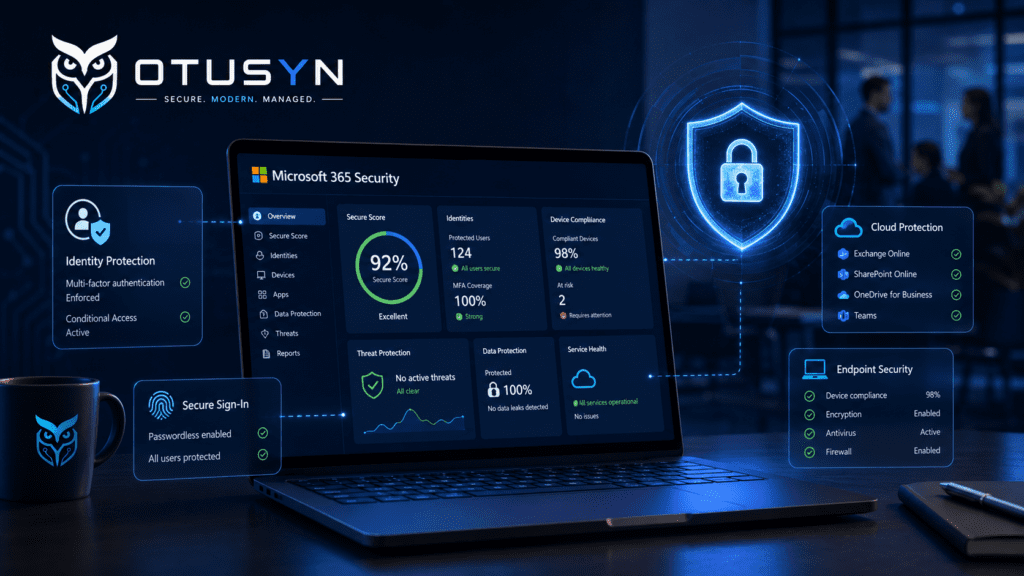
What is a Microsoft 365 security baseline?
A Microsoft 365 security baseline is a defined set of core security controls that helps protect user accounts, devices, email, files and cloud services.
It is not a fixed checklist that looks the same for every organisation. The right baseline depends on factors such as:
- Number of employees
- Type of data handled
- Microsoft 365 licence level
- Use of remote or hybrid working
- Number of managed devices
- Use of external suppliers
- Existing IT support arrangements
- Regulatory or customer requirements
However, most organisations should be able to answer a few important questions:
- Is multi-factor authentication enabled and enforced?
- Are admin roles limited and reviewed?
- Are risky sign-ins monitored or controlled?
- Are devices secure and compliant?
- Are email protections configured properly?
- Are leaver accounts removed quickly?
- Are security settings reviewed regularly?
The purpose of a baseline is to create consistency.
Rather than relying on individual judgement each time something changes, the organisation has agreed controls that can be checked, measured and improved over time.
Microsoft describes Conditional Access as its Zero Trust policy engine because it brings together signals such as user identity, device state, location and risk to enforce access decisions.
Start with multi-factor authentication coverage
Multi-factor authentication, often referred to as MFA, should be one of the first controls to validate.
MFA adds an additional step when someone signs in. This may involve approving a notification through an authentication app, entering a code, using a security key or confirming identity through a biometric method.
The benefit is straightforward.
If a password is stolen, guessed or reused from another service, an attacker is less likely to access the account without the second verification step.
For growing organisations, MFA should not be treated as something that is “enabled for most people.” It should be measured properly.
A practical review should identify:
- Users without MFA registration
- Users who are excluded from MFA policies
- Admin accounts without stronger authentication
- Legacy accounts that may bypass normal controls
- Shared accounts that should be replaced with named user accounts
- Service accounts that need a separate security review
Microsoft provides Security Defaults as a basic protection option for tenants without Microsoft Entra ID P1 or P2 licensing. Organisations using Conditional Access can apply more granular controls, but Security Defaults and Conditional Access are not designed to be enabled together.
For many organisations, the immediate priority is simple:
- Confirm all active users are registered for MFA.
- Confirm MFA is enforced for sign-ins.
- Review exclusions and remove those that are no longer justified.
- Apply stronger protection for administrators.
MFA is not the full security baseline, but it is a critical starting point.
Read more: Why Multi-Factor Authentication Matters for Growing Organisations
Reduce standing administrator privilege
Administrative accounts need more protection than standard user accounts.
A Global Administrator, Exchange Administrator, SharePoint Administrator or Intune Administrator can make changes that affect many users, devices and services. For this reason, privileged roles should be limited to people who genuinely need them.
A common weakness in growing organisations is giving broad administrator access because it is convenient.
Over time, this can lead to too many people holding highly privileged roles, former staff retaining access or external suppliers having more access than necessary.
A more structured approach includes:
- Limiting Global Administrator accounts
- Assigning the least privileged role needed for each task
- Using separate administrator accounts where appropriate
- Reviewing privileged role assignments regularly
- Removing inactive or unnecessary admin accounts
- Keeping emergency access accounts documented and protected
- Requiring strong MFA for all privileged users
Microsoft recommends applying least privilege and using Privileged Identity Management where available so administrators can activate access only when needed for a limited period.
For a growing organisation, this does not always mean implementing every advanced privileged-access feature immediately.
It means starting with visibility.
You should be able to answer:
- Who has admin rights?
- What role do they have?
- Why do they need it?
- Is the access permanent or temporary?
- When was the role last reviewed?
A smaller number of well-managed administrator accounts is safer and easier to audit than broad standing access across the business.
Use Conditional Access for higher-risk sign-ins
Conditional Access helps organisations make access decisions based on context.
For example, a sign-in may be treated differently depending on:
- Whether MFA has been completed
- Whether the user is an administrator
- Whether the device is compliant
- Whether the sign-in appears risky
- Whether the user is accessing a sensitive application
- Whether the user is signing in from an unfamiliar location
- Whether legacy authentication is being used
This allows security controls to be more proportionate.
Rather than blocking every unusual sign-in automatically, an organisation can require additional authentication or a compliant device before allowing access.
Microsoft provides managed Conditional Access policies that can help cover high-risk scenarios, including requiring MFA for highly privileged administrative roles accessing Microsoft admin portals.
A sensible starting set of Conditional Access policies may include:
- Require MFA for administrators
- Require MFA for all users
- Block legacy authentication
- Require compliant devices for access to sensitive services
- Require stronger authentication for high-risk roles
- Restrict access where sign-in risk is high
- Protect access to administrative portals
Policies should be introduced carefully.
Always identify emergency access accounts, document exclusions and test the effect of a policy before enforcing it widely. Conditional Access can be powerful, but poor planning can lock out legitimate users or services.
The goal is not to make access difficult. The goal is to make access appropriate for the level of risk.
Align endpoint compliance with identity controls
Identity and devices should be managed together.
A secure account can still be used from an unmanaged laptop, outdated mobile phone or device that has not been encrypted. Equally, a secure device does not help if the user account has weak access controls.
This is why endpoint compliance is an important part of a Microsoft 365 security baseline.
A basic endpoint compliance review should consider:
- Are business devices enrolled in management?
- Are operating systems supported and updated?
- Is disk encryption enabled?
- Is endpoint protection active?
- Are security updates applied?
- Are lost devices able to be locked or wiped?
- Are personal devices accessing business data?
- Are non-compliant devices restricted from sensitive services?
Microsoft Intune can help organisations apply consistent security settings across devices, including compliance policies, encryption requirements, application controls and update management.
The value is not simply that the organisation can “see devices.”
The value is that access to business services can be tied to the security condition of those devices.
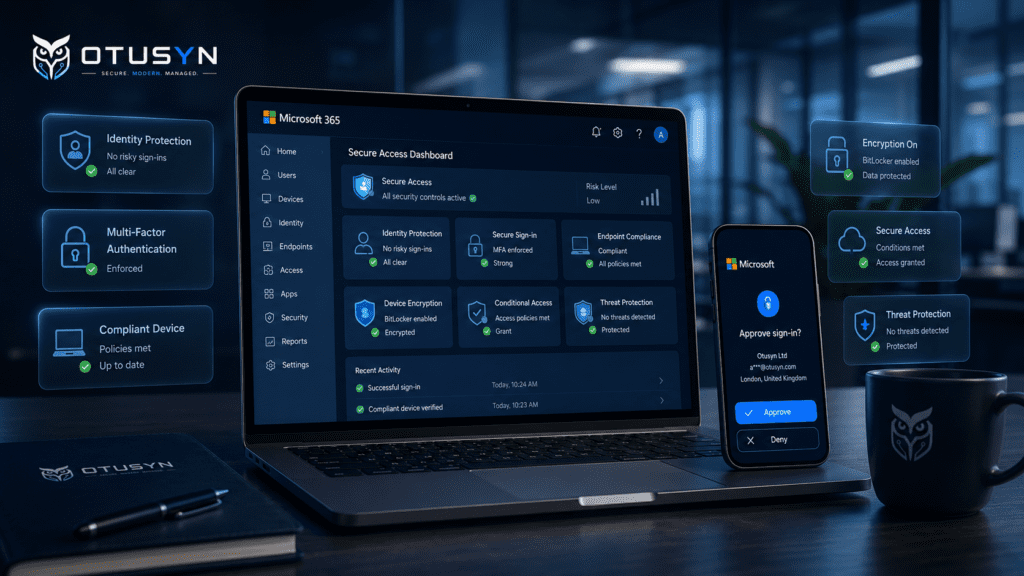
For example, a Conditional Access policy can require a compliant device before accessing Microsoft 365 applications. This helps reduce the risk of business data being accessed from unmanaged or unhealthy devices.
Learn more about Endpoint Management.
Strengthen mailbox and email protection
Email remains one of the most common routes for phishing, impersonation attempts and business email compromise.
A Microsoft 365 security baseline should include a review of mailbox protections, anti-phishing settings, spam controls and policies that reduce avoidable email risk.
All cloud mailboxes receive built-in protection through Exchange Online Protection, including phishing and spoofing-related controls. Microsoft Defender for Office 365 adds stronger protection features depending on the licence plan, including protection against zero-day malware, phishing and business email compromise.
A practical mailbox protection review should include:
- Anti-spam policy settings
- Anti-malware protection
- Anti-phishing protection
- Spoof intelligence and impersonation controls
- Safe Links and Safe Attachments, where licensed
- External email forwarding controls
- Shared mailbox ownership
- Unused or inactive mailbox review
- Mailbox auditing and alerting
- Rules that could indicate account compromise
Microsoft’s preset security policies can apply coordinated protection settings across anti-malware, anti-spam, anti-phishing, Safe Links and Safe Attachments controls.
The important point is not to turn every email setting to its strictest possible level without considering the business impact.
Instead, start with a known baseline, confirm how it affects users and review exceptions carefully.
For example, some organisations need to receive external attachments or allow certain suppliers to send automated emails. These needs should be understood and documented rather than handled through unmanaged workarounds.
Build secure onboarding and offboarding controls
Joiner and leaver processes are often where security and operations meet.
When new staff join, they need the correct account, device, licences, access and guidance. When people leave, access needs to be removed promptly, devices recovered and ownership of files, mailboxes and systems reviewed.
A structured onboarding process should include:
- Creating named user accounts
- Assigning the correct licence
- Enforcing MFA registration
- Providing a managed and secure device
- Assigning only the access required for the role
- Providing basic security guidance
- Recording ownership of key systems or shared mailboxes
A structured offboarding process should include:
- Disabling or blocking sign-in promptly
- Removing licences where appropriate
- Removing privileged role assignments
- Recovering business devices
- Reviewing mailbox and file ownership
- Removing access to third-party applications
- Checking delegated access and shared mailboxes
- Recording completion of the leaver process
The process does not need to be complicated.
The important thing is that it is repeatable, owned and completed consistently.
A clear joiner, mover and leaver process reduces the risk of former staff retaining access and helps new staff begin work with the right controls in place.
Keep the baseline simple and measurable
A security baseline should be easy to understand and easy to review.
If the baseline becomes a long list of controls with no owner, no reporting and no review process, it will become difficult to maintain.
A better approach is to define a small number of measures that can be reviewed monthly.
For example:
| Area | Example monthly measure |
|---|---|
| MFA | Percentage of active users protected by MFA |
| Privileged access | Number of Global Administrators and other privileged roles |
| Risky sign-ins | Number of high-risk sign-ins investigated |
| Device compliance | Percentage of managed devices marked compliant |
| Patch status | Percentage of devices receiving current updates |
| Mailbox protection | Number of phishing or malware incidents reviewed |
| Leavers | Percentage of leaver accounts disabled on time |
| Backups | Last successful recovery test date |
| Security reviews | Outstanding actions from the previous month |
The exact measures should match the organisation’s environment.
The goal is not to create a dashboard for its own sake. The goal is to make security visible and manageable.
When leaders can see that MFA coverage has dropped, devices are becoming non-compliant or leaver access is not being removed promptly, they can act before the issue becomes more serious.
Common Microsoft 365 security baseline mistakes
Treating MFA as a one-time project
MFA registration and enforcement should be reviewed regularly. New users join, accounts change, exclusions are added and legacy accounts may remain in the environment.
Giving too many users broad admin roles
Convenience can quickly become unnecessary risk. Use least privilege and review privileged roles on a regular basis.
Managing identity and devices separately
A user account and the device used to access it are part of the same risk picture. Stronger access controls work best when aligned with device compliance.
Ignoring mailbox settings
Email protection is not only about spam filtering. Mail forwarding, impersonation protection, mailbox rules and external sharing settings all matter.
Leaving joiner and leaver controls informal
Informal processes may work when there are only a few staff. As the organisation grows, repeatable processes become increasingly important.
Trying to deploy everything at once
A strong baseline is built gradually. Start with MFA, admin roles, access policies, device compliance and mailbox protection. Improve the baseline as visibility and capability increase.
A practical Microsoft 365 security baseline checklist
Use this checklist as a starting point:
- MFA is enabled and enforced for all active users
- Administrative users have stronger MFA protection
- Shared user accounts are removed or reduced
- Global Administrator accounts are limited and reviewed
- Least-privilege roles are used where possible
- Emergency access accounts are documented and protected
- Conditional Access policies are documented and reviewed
- Legacy authentication is blocked where possible
- Business devices are enrolled and managed
- Device encryption is enabled
- Endpoint protection is active
- Devices are updated and monitored for compliance
- Email anti-phishing and anti-spam protections are reviewed
- External forwarding controls are reviewed
- Shared mailbox ownership is clear
- Joiner and leaver processes are documented
- Security actions are reviewed monthly
- Significant issues have an owner and target date
Frequently asked questions
What is the first Microsoft 365 security control we should review?
Start with MFA coverage. Confirm that all active users are registered and that MFA is enforced, especially for administrative accounts.
Do we need Microsoft Entra ID P1 or P2?
It depends on the controls you need. Security Defaults can provide a basic level of protection for organisations without Conditional Access licensing. Conditional Access requires appropriate Microsoft Entra ID licensing and provides more flexibility and granularity.
How many Global Administrators should a business have?
There is no single number for every organisation, but Global Administrator access should be limited to only the people who genuinely require it. Organisations should review the role regularly and use less privileged roles for routine administration where possible.
How often should we review our Microsoft 365 security baseline?
A monthly review is a practical rhythm for most growing organisations. It allows teams to monitor MFA coverage, device compliance, privileged access, incidents and unresolved actions without creating unnecessary overhead.
Is Microsoft 365 secure by default?
Microsoft 365 includes important built-in protections, but security still depends on configuration, user access, device management and how the organisation manages change. A baseline helps make these controls clear and consistent.
Build a stronger Microsoft 365 security foundation
Growing organisations do not need to begin with advanced tooling or complex security programmes.
The most valuable first step is to establish clear controls around identity, privileged access, risky sign-ins, devices, email and staff lifecycle processes.
Start simple. Make the controls measurable. Review them regularly.
A practical Microsoft 365 security baseline can help reduce avoidable risk while giving your organisation a clearer, more manageable technology foundation.
OTUSYN helps growing organisations review their Microsoft 365 environment, identify security gaps and create a prioritised improvement plan.
or contact OTUSYN to discuss your Microsoft 365 security baseline.