
Why Too Many Intune Policies Fail
Microsoft Intune can help small IT teams manage devices, apply security controls, deploy applications and protect access to business systems.
However, an Intune rollout can become difficult very quickly when too many policies are deployed at the same time.
A device may show as non-compliant. An application may fail to install. A configuration setting may conflict with another policy. Users may receive unexpected prompts or lose access to a business system. When several policy categories are introduced together, it becomes much harder to identify what caused the problem.
For small IT teams, the answer is not usually more policy.
It is better sequencing.
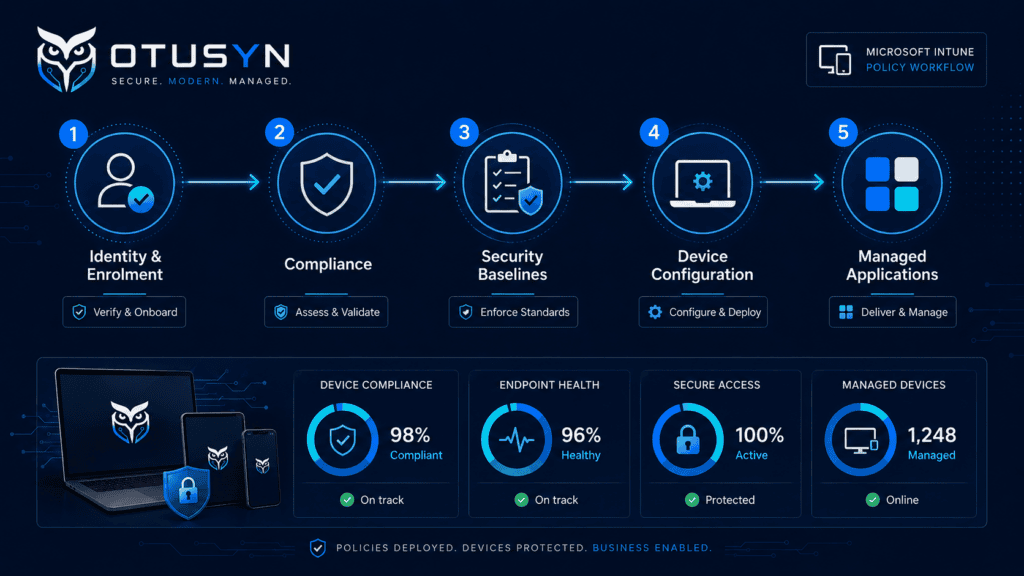
A practical Intune rollout should start with identity and enrolment prerequisites, then move to compliance, security baselines, core configuration and finally wider app controls. This gives the team a clear path for testing, troubleshooting and scaling the rollout with less disruption.
Microsoft’s Intune deployment guidance follows a similar staged model: set up Intune, add and protect apps, define compliance requirements, configure device settings and then enrol devices.
This article explains a simple Intune policy order of operations for small IT teams.

Why policy order matters in Intune
Intune policies do not operate in isolation.
Device enrolment affects whether a device can receive management policies. Compliance policies influence whether a device is trusted. Conditional Access can use that compliance state when deciding whether a user should access Microsoft 365 services. Configuration profiles and endpoint security policies can apply overlapping settings. Application deployment may also depend on a device being enrolled correctly and assigned to the right group.
This means the order of deployment matters.
A clear sequence helps small IT teams:
- Test changes with less risk
- Identify policy conflicts more quickly
- Avoid locking users out unexpectedly
- Protect user experience during rollout
- Keep support requests manageable
- Build a reliable configuration baseline
- Scale deployment with more confidence
The goal is not to slow down the rollout.
The goal is to make each stage understandable before moving to the next one.
Start with pilot rings, not all users
Before deploying policies, create a simple pilot-ring structure.
Pilot rings allow you to test changes with a small group before expanding to a larger audience. Microsoft supports assigning device configuration profiles and policies through Microsoft Entra groups, including user or device groups.
For a small IT team, a practical approach may look like this:
| Ring | Purpose | Typical users |
|---|---|---|
| Ring 0 | IT testing | IT administrators and technical support staff |
| Ring 1 | Controlled pilot | A small group of representative business users |
| Ring 2 | Early rollout | One department or larger user group |
| Ring 3 | Wider deployment | Remaining standard users and devices |
The users in Ring 1 should represent normal working patterns.
Include people using standard laptops, common Microsoft 365 applications, typical remote-working arrangements and key business processes. Avoid beginning with highly unusual devices or complicated edge cases. Those should be reviewed later once the core baseline is working.
Each ring should have:
- A defined group
- Named internal contacts
- Clear support routes
- A documented policy scope
- Known success criteria
- A review point before expansion
Stage 1: Confirm identity and enrolment prerequisites
Before a device receives policies, make sure identity and enrolment are ready.
This first stage is about making sure users can sign in, devices can enrol and Intune can identify the device correctly.
Review the following areas:
- Microsoft Entra ID user accounts
- Appropriate Intune licences
- Device enrolment restrictions
- Platform enrolment methods
- Device ownership type
- User-to-device association
- Group membership for pilot users
- Existing mobile device management tools
- Administrator access and support responsibilities
Intune supports enrolment and management across desktops, mobile devices and virtual endpoints, while also managing user access to organisational resources.
At this stage, avoid introducing broad security restrictions.
The priority is to confirm that devices can enrol successfully and show correctly in the Intune admin centre.
Success indicators include:
- Pilot devices appear in Intune
- Users are linked to the correct devices
- Operating system details are visible
- Device ownership is correct
- Devices are checking in successfully
- Pilot groups are receiving the intended assignments
- Support teams can identify enrolled devices
If enrolment is inconsistent, resolve that before moving forward.
There is little value in deploying security or application policies to devices that are not properly enrolled or cannot reliably receive management instructions.
Stage 2: Deploy device compliance policies
Once enrolment is working, move to device compliance.
Compliance policies define the security conditions that a device must meet. They evaluate the device against those conditions and report compliance status to Intune and Microsoft Entra ID.
Compliance policies are different from configuration profiles.
Configuration profiles tell a device what settings to apply. Compliance policies evaluate whether a device meets the organisation’s security requirements. Microsoft also distinguishes compliance policies from broader device configuration settings in its deployment guidance.
For a small IT team, start with a manageable set of compliance checks such as:
- Supported operating system version
- Device encryption enabled
- Endpoint protection active
- Firewall enabled
- Basic password or PIN requirements
- Device threat level, where Microsoft Defender integration is available
- Minimum security patch level
Avoid making every possible setting a compliance requirement immediately.
The purpose of the first compliance policy is to establish a realistic baseline.
Test whether standard devices can meet the requirements without excessive manual work or user disruption.
Questions to ask during the pilot include:
- Which devices are becoming non-compliant?
- Why are they failing?
- Are the failures expected?
- Is the policy too strict for current device conditions?
- Does the organisation need remediation steps or user guidance?
- Are there genuine exceptions that need documented approval?
Do not enable broad access blocks at this stage until you understand the compliance results.
Stage 3: Apply security baselines and endpoint security controls
Once compliance requirements are understood, move to security baselines and endpoint security controls.
Intune security baselines are groups of preconfigured Windows settings designed to help apply and enforce recommended security settings. Organisations can customise baseline settings to match their requirements.
For small IT teams, security baselines can be useful because they provide a structured starting point. However, they should still be tested carefully.
Start with a pilot group and review the effect on:
- Microsoft Defender settings
- Firewall settings
- BitLocker and encryption controls
- Attack surface reduction rules
- Local security policies
- Browser security settings
- User experience
- Application compatibility
- Existing endpoint protection tools
Do not assume that every recommended setting will be suitable for every device, application or working pattern.
A baseline should be reviewed in the context of the organisation’s actual environment.
A practical approach is:
- Deploy the security baseline to Ring 0.
- Review policy status and user impact.
- Resolve conflicts or document planned exceptions.
- Deploy to Ring 1.
- Hold a short review before moving to Ring 2.
Keep a record of any settings changed from the default recommendation and why.
This helps future troubleshooting and reduces dependency on individual knowledge.
Stage 4: Introduce Conditional Access carefully
Conditional Access links identity, device compliance and access to cloud services.
For example, an organisation may require a compliant device before allowing access to selected Microsoft 365 applications.
This is powerful, but it should be introduced after compliance policies have been tested.
If Conditional Access is enabled too early, users may be blocked because their device has not yet enrolled, has not received policies, or is temporarily non-compliant for a reason that has not been investigated.
Microsoft recommends using groups or roles to scope Conditional Access policies rather than listing individual users directly.
For small IT teams, a careful rollout approach is:
- Start with a pilot group
- Use report-only mode where appropriate
- Protect emergency access accounts
- Document exclusions
- Test with representative users
- Confirm device compliance reporting
- Monitor sign-in impact
- Expand gradually
At this stage, focus on high-value policies such as:
- Require MFA for administrators
- Block legacy authentication
- Require compliant devices for sensitive services
- Require stronger controls for privileged access
- Limit access from unmanaged devices where appropriate
Do not apply every Conditional Access scenario at once.
Start with the controls that address the highest risk and have the clearest business justification.
Stage 5: Add core device configuration
Once identity, enrolment, compliance and security baselines are working, move to broader device configuration.
This is where small IT teams can introduce settings that support a consistent device experience.
Examples include:
- Device naming conventions
- Wi-Fi profiles
- VPN configuration
- Browser settings
- Windows update rings
- Microsoft Edge settings
- OneDrive configuration
- Printer deployment
- Certificates
- Restrictions on personal cloud storage
- Power settings
- Desktop settings
- Company Portal configuration
Device configuration profiles allow organisations to configure settings and push them to devices. Microsoft notes that Windows baselines are one option within device configuration and include preconfigured security settings.
Do not deploy unrelated configuration profiles all at once.
Group settings into logical categories and test them in pilot rings.
For example:
| Configuration area | Suggested rollout approach |
|---|---|
| Wi-Fi and VPN | Test with remote and office users |
| Update rings | Test on IT and pilot devices first |
| Browser settings | Validate critical web applications |
| OneDrive settings | Check user experience and file sync |
| Device restrictions | Confirm no business process is affected |
| Printers and certificates | Test with affected user groups only |
This keeps troubleshooting clear.
Stage 6: Deploy applications and app controls
Application deployment should come after the device foundation is stable.
A managed device may need Microsoft 365 Apps, security tools, VPN clients, browsers, specialist line-of-business applications, certificates, browser extensions or support tools.
Intune can deploy, configure, protect and update applications for managed and personal devices.
For small IT teams, begin with a small number of core applications:
- Microsoft 365 Apps
- Microsoft Defender components, where applicable
- VPN client
- Remote support tool
- Browser
- Core line-of-business application
- PDF reader or essential utilities
Validate:
- Installation success
- Upgrade behaviour
- Application launch
- User access
- Licensing or sign-in behaviour
- Interaction with existing software
- Uninstall or rollback process
Only after the core applications work reliably should the team move to a wider catalogue of optional apps, specialised tools or automated app controls.
Document failures and policy conflicts
One of the most useful habits for a small IT team is documenting failures as they happen.
Do not rely on memory, chat messages or support tickets alone.
Keep a simple rollout log containing:
| Item | Example |
|---|---|
| Policy name | Windows Security Baseline Pilot |
| Target group | Intune Ring 1 – Pilot Users |
| Date deployed | 10 July 2026 |
| Result | Partial success |
| Issue found | VPN client stopped connecting |
| Impact | Remote pilot users affected |
| Root cause | Firewall rule conflict |
| Action taken | Created documented exception |
| Retest date | 12 July 2026 |
| Outcome | Resolved |
This log does not need to be complicated.
It gives the team a record of:
- What was deployed
- Who received it
- What changed
- What failed
- How it was resolved
- Whether a follow-up action is still needed
It also helps during audits, handovers and future policy changes.
Avoid deploying too many policy categories at once
A common Intune mistake is launching:
- Compliance policies
- Security baselines
- Device restrictions
- Update rings
- Application deployments
- Conditional Access
- VPN profiles
- Wi-Fi profiles
- Browser controls
- Endpoint protection policies
…all in the same week.
This creates too many variables.
When something breaks, it becomes difficult to know whether the cause is a compliance rule, a security baseline, an application conflict, a device restriction or an access policy.
A clearer approach is:
- Identity and enrolment
- Compliance
- Security baseline
- Conditional Access pilot
- Core configuration
- Core applications
- Wider configuration and app controls
Small IT teams benefit from this approach because it reduces troubleshooting time and protects user experience.
A practical Intune policy order checklist
Stage 1: Identity and enrolment
- Pilot-ring groups created
- Pilot users and devices confirmed
- Intune licences assigned
- Enrolment methods configured
- Existing device management tools reviewed
- Device ownership approach agreed
- Support contacts confirmed
- Devices enrol successfully
Stage 2: Compliance
- Compliance policy created for pilot ring
- Encryption requirement tested
- Endpoint protection requirement tested
- Firewall requirement tested
- Supported operating system requirements tested
- Non-compliant device reasons reviewed
- Exceptions documented
Stage 3: Security baseline
- Security baseline tested with IT ring
- Security baseline tested with pilot users
- Policy conflicts reviewed
- Existing application impact assessed
- Exceptions documented
- Rollback approach understood
Stage 4: Conditional Access
- Emergency access accounts protected
- Pilot group assigned
- Report-only testing completed where appropriate
- MFA requirements validated
- Compliant-device requirements tested
- Sign-in impact reviewed
Stage 5: Device configuration
- Wi-Fi and VPN profiles tested
- Update rings tested
- Browser settings tested
- OneDrive configuration tested
- Device restrictions tested
- Required certificates and printers tested
Stage 6: Applications
- Core applications identified
- App installation tested
- App update behaviour tested
- Licensing and sign-in validated
- User feedback gathered
- Optional apps planned for later rollout
Frequently asked questions
What should be deployed first in Intune?
Start with identity and device enrolment prerequisites. Once devices are enrolled and visible, move to compliance policies, then security baselines, Conditional Access pilot controls, device configuration and finally application deployment.
Should we deploy security baselines before compliance policies?
Usually, it is better to establish compliance requirements first. Compliance provides visibility into whether devices meet the required conditions. Security baselines can then be deployed and tested in controlled pilot rings.
How many pilot rings should a small IT team use?
Most small IT teams can begin with three or four rings: IT testing, a controlled pilot, early rollout and wider deployment. The important point is to have a clear review stage before expanding.
Can Intune policies conflict?
Yes. Multiple profiles or policy categories can target the same setting. Deploying changes in a controlled order makes conflicts easier to identify and resolve.
When should Conditional Access be introduced?
Conditional Access should be introduced once enrolment and compliance reporting are working reliably. Start with a pilot group and test the impact before enforcing access restrictions more broadly.
Build Intune in a controlled order
A successful Intune rollout is not about deploying every available policy.
It is about creating a reliable foundation and expanding it carefully.
Start with identity and enrolment. Confirm compliance. Test security baselines. Introduce Conditional Access in a controlled way. Add core configuration. Then deploy applications and broader controls.
This sequence keeps troubleshooting clear, reduces user disruption and gives small IT teams a practical way to scale endpoint management with confidence.
OTUSYN helps growing organisations plan, pilot and manage Microsoft Intune deployments, including enrolment, policy design, security baselines, compliance and rollout support.