
Intune is an Operational Change, Not Just a Technical Deployment
Microsoft Intune can help small IT teams manage devices, improve security, deploy applications and create a more consistent endpoint experience.
However, Intune rollouts do not usually struggle because the platform lacks capability.
They struggle because the rollout is treated as a technical deployment rather than an operational change.
Policies are assigned too quickly. Pilot groups are not representative. Users receive changes without warning. Device standards are not defined. Exceptions are handled informally. Support teams inherit the rollout after the technical work is already underway.
A better approach is to introduce Intune in stages, test with realistic users and make sure the organisation has a clear plan for ongoing ownership once the initial rollout is complete.
This article explains the most common Intune rollout mistakes small IT teams should avoid and how to create a more controlled path to endpoint management.
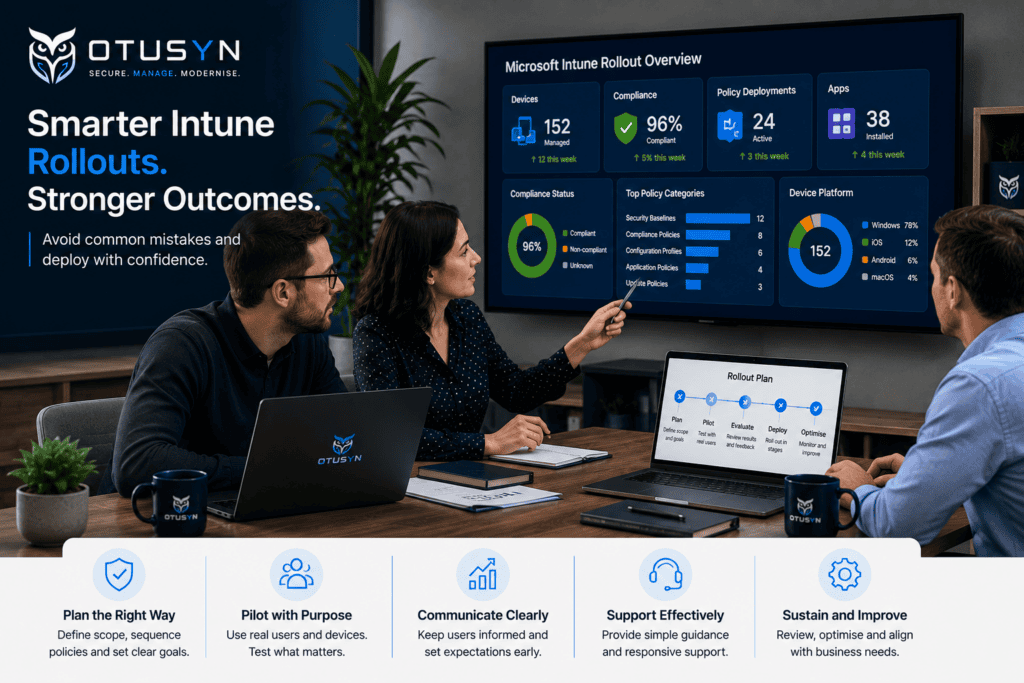
Why Intune rollout mistakes happen
Intune brings together several important areas of device management.
This can include:
- Device enrolment
- Compliance policies
- Security baselines
- Application deployment
- Device configuration
- Update management
- Conditional Access
- Endpoint protection
- User access controls
- Mobile device management
Because these areas are connected, a problem in one area can affect another.
For example, a compliance policy may cause devices to be marked non-compliant. Conditional Access may then restrict access to Microsoft 365. A user may believe email or Teams has stopped working, while the root cause is actually an enrolment or policy issue.
This is why rollout sequencing matters.
The strongest Intune deployments begin with a limited pilot group, a clear policy order, realistic support arrangements and regular review points.
The goal is not to deploy everything quickly.
The goal is to build a stable foundation that can be expanded with confidence.
Mistake 1: Applying too many policies at once
One of the most common Intune rollout mistakes is assigning too many policy categories at the same time.
A small IT team may try to deploy:
- Compliance policies
- Security baselines
- Device restrictions
- Configuration profiles
- Update rings
- Application packages
- VPN profiles
- Wi-Fi profiles
- Browser controls
- Conditional Access
- Endpoint protection settings
All within the first few days.
This can create troubleshooting noise.
When a user reports an issue, it becomes difficult to determine whether the cause is a configuration profile, compliance rule, application deployment, security setting or access policy.
A more controlled approach is to introduce policies in a clear order.
A practical sequence is:
- Identity and enrolment
- Device compliance
- Security baselines
- Conditional Access pilot controls
- Core device configuration
- Managed applications
- Wider policy and application controls
Each stage should be tested before the next one is expanded.
For example, do not require compliant devices for Microsoft 365 access until the team understands why devices may become non-compliant.
Do not deploy a large application catalogue until core device enrolment and configuration are working reliably.
The less change introduced at once, the easier it is to identify and fix issues.
Read more: Intune Policy Order of Operations for Small IT Teams
Use pilot groups before wider deployment
Pilot groups are not simply a technical test.
They are a way to understand the operational impact of changes before the wider organisation is affected.
A good pilot should include representative users, devices and working patterns.
For example:
- Office-based staff
- Hybrid or remote workers
- Standard Windows laptops
- Users of core business applications
- Staff with Microsoft 365 access
- A manager or department lead
- Internal support staff
- Users who can provide clear feedback
Avoid starting with only highly technical users.
Technical users may be more comfortable resolving issues themselves, may use different tools or may tolerate changes that ordinary users would find disruptive.
A pilot should reflect normal business activity.
It should help answer questions such as:
- Can users enrol devices successfully?
- Do policies apply consistently?
- Are core applications still working?
- Are users prompted too often?
- Can remote users connect successfully?
- Are compliance results understandable?
- Are users able to access Microsoft 365 services?
- What support issues are being raised?
The pilot does not need to be large.
For many small IT teams, a group of 10 to 25 representative users is enough to provide useful evidence.
Mistake 2: Weak pilot design
A weak pilot may technically prove that Intune can enrol devices, but it may not prove that the rollout will work for the business.
Common pilot weaknesses include:
- Selecting only IT staff
- Choosing users with identical device types
- Ignoring remote workers
- Not testing key applications
- Not testing line-of-business systems
- Not collecting user feedback
- Expanding the rollout before issues are understood
- Treating every pilot issue as an isolated problem
A stronger pilot should test real work.
This includes:
- Signing into Microsoft 365
- Accessing Teams, SharePoint and OneDrive
- Using core business applications
- Connecting to Wi-Fi or VPN services
- Printing where required
- Completing normal update cycles
- Using security controls such as MFA
- Working remotely
- Accessing internal or cloud-based systems
- Installing required applications
The pilot should also include a clear feedback route.
Users need to know where to report issues, and the IT team needs a way to group feedback into themes.
For example:
| Support theme | Example issue |
|---|---|
| Enrolment | Device cannot complete Company Portal enrolment |
| Compliance | Device shows non-compliant due to encryption setting |
| Applications | VPN client does not install correctly |
| User experience | User receives repeated security prompts |
| Access | Microsoft 365 access blocked unexpectedly |
| Configuration | Printer or Wi-Fi profile does not apply |
| Training | User does not understand what action is required |
This makes the pilot more useful.
Instead of reacting to individual messages, the team can identify patterns and prioritise improvements.
Test productivity workflows, not just enrolment
A device successfully enrolling on Intune is only the beginning.
The real question is whether the user can continue working effectively.
A rollout should test the workflows that matter most to the organisation.
For example:
- Can the user access email and Teams?
- Can they open and sync OneDrive files?
- Can they access SharePoint sites?
- Can they use Microsoft 365 applications?
- Can they connect remotely where needed?
- Can they use business-critical applications?
- Can they print or access secure internal services?
- Can they receive updates without disruption?
- Can they get support when something fails?
This is particularly important for growing organisations where users may have different work patterns.
A finance user may need access to specific applications. A school administrator may need to access student systems. A field worker may need secure mobile access. A charity team may need devices that work reliably across multiple locations.
Intune should support the work people need to do.
That means rollout testing should focus on business outcomes as well as technical outcomes.

Mistake 3: No communication plan
User trust can drop quickly when technology changes arrive without context.
A user may see a new sign-in prompt, a device enrolment request, a security policy, a software installation or a new access restriction without understanding why it has happened.
This can create confusion and unnecessary support requests.
A simple communication plan can make a major difference.
Users should know:
- What is changing
- Why the change is happening
- When will it apply
- What they need to do
- Whether they may see prompts or notifications
- How long will the process may take
- Who to contact if something does not work
- What to do if access is interrupted
Keep the communication practical.
Avoid technical explanations that users do not need.
For example:
“Your laptop will be enrolled in our device-management service this week. This helps keep your device updated, secure and ready to access company systems. You may be asked to sign in or complete a short setup step. Please save your work before starting. If you need help, contact the IT support team through the normal support route.”
A good communication plan should also include managers.
Managers may need to know when their teams will be affected, which users are in the pilot and what to do if staff report issues.
The goal is not to create long communications.
The goal is to reduce uncertainty.
Mistake 4: Ignoring operational ownership
Intune is not a one-time deployment.
Once policies are live, someone needs to own:
- Policy lifecycle management
- New-device enrolment
- Device standards
- Compliance review
- Security exceptions
- Application deployment
- Device replacement
- Lost-device actions
- User support
- Policy conflict investigation
- Documentation updates
- Regular review of rollout results
Without clear ownership, the environment can become difficult to manage over time.
Policies may remain assigned after they are no longer needed. Exceptions may become permanent. Devices may not be retired properly. New users may receive different experiences depending on who supports them. Support teams may not understand why a policy exists.
A practical operating model should define:
| Area | Suggested owner |
|---|---|
| Device enrolment | IT support or endpoint administrator |
| Security baselines | IT security or endpoint owner |
| Compliance policies | Endpoint owner |
| Conditional Access changes | Identity or security owner |
| Application deployment | Endpoint or application owner |
| Exceptions | IT manager with business approval |
| Device standards | IT operations or endpoint management owner |
| User communications | IT support and business manager |
| Policy documentation | Named policy owner |
| Monthly review | IT manager or managed service partner |
For smaller organisations, one person may own several areas.
That is acceptable as long as responsibilities are clear and documented.
Align Intune rollout with managed IT support
Intune is most effective when it is connected to the wider IT support model.
A managed device environment needs more than policies. It needs support processes that keep those policies useful over time.
This includes:
- A clear route for user support
- A process for new starters
- A process for leavers and returned devices
- A process for lost or stolen devices
- Device replacement planning
- Asset records
- Security incident reporting
- Access review processes
- Supplier coordination
- Regular service reviews
For example, a user who receives a replacement laptop should not have a completely different security baseline from other staff. A leaver’s device should be removed from active management and reviewed. A policy exception should be recorded, approved and revisited.
This is why endpoint management and managed IT support should work together.
The initial rollout may be a project, but the ongoing environment is an operational service.
Explore OTUSYN Managed IT Support and Endpoint Management for support with Intune rollout, device standards and ongoing management.
Create a practical Intune rollout plan
A clear rollout plan does not need to be lengthy.
It should define the core stages, pilot groups, success measures and decision points.
A practical plan may include:
| Stage | Focus | Key outcome |
|---|---|---|
| Preparation | Licences, groups, enrolment and support readiness | Environment is ready for pilot |
| Pilot | Representative users and standard devices | Core workflows tested |
| Compliance | Security and device health requirements | Device status understood |
| Security baseline | Endpoint protection and configuration | Core security controls working |
| Access controls | Conditional Access and compliant device requirements | Access policies tested safely |
| Applications | Core business applications and support tools | Productivity workflows confirmed |
| Expansion | Controlled rollout to additional groups | Wider deployment managed |
| Operations | Ownership, reviews and support processes | Sustainable endpoint management |
The plan should include review points.
For example:
- Review after the first week of pilot activity
- Review before expanding to the next user group
- Review after compliance policies are enabled
- Review before Conditional Access becomes enforced
- Review after core applications are deployed
- Monthly review after rollout completes
These checkpoints help teams make deliberate decisions rather than continuing by default.
A practical checklist for avoiding Intune rollout mistakes
Before the rollout
- Pilot-ring groups are created
- Representative users are selected
- Standard devices are identified
- Core business applications are listed
- Existing device-management tools are reviewed
- Support contacts are confirmed
- User communications are prepared
- Success measures are agreed upon
- Pause criteria are documented
During the pilot
- Devices enrol successfully
- Users can access Microsoft 365
- Core applications work
- Compliance status is reviewed
- Policy conflicts are investigated
- User feedback is captured
- Support issues are grouped into themes
- Exceptions are documented
- Changes are introduced in stages
Before wider rollout
- Pilot issues are understood
- Known risks have owners
- Security baselines are tested
- Conditional Access impact is reviewed
- Communication for wider users is prepared
- Support teams know the expected user experience
- Rollback or pause options are understood
After rollout
- Policy ownership is documented
- Device standards are maintained
- Compliance is reviewed regularly
- New starter process includes device enrolment
- Leaver process includes device recovery
- Support trends are reviewed
- Exceptions are revisited
- Documentation is kept current
Frequently asked questions
What is the most common Intune rollout mistake?
Applying too many policies at once is one of the most common mistakes. This creates troubleshooting complexity and makes it difficult to understand which policy caused an issue.
How many users should be in an Intune pilot?
For many small IT teams, a pilot of 10 to 25 representative users is a practical starting point. The group should include normal business users, common device types and key business workflows.
Should technical users be the only Intune pilot users?
No. Technical users are useful, but they do not always represent the wider organisation. Include typical users who rely on common business applications and normal support processes.
When should Conditional Access be introduced?
Conditional Access should be introduced after device enrolment and compliance reporting are working reliably. Start with a controlled pilot and assess the impact before enforcing policies more widely.
Does Intune need ongoing support after the rollout?
Yes. Intune needs ongoing ownership for policy lifecycle, device standards, support, exception management, compliance review and new-device processes.
Treat Intune as an operational change
Intune rollout success is not only about platform configuration.
It is about sequencing changes carefully, testing with representative users, communicating clearly and assigning ongoing ownership.
Small IT teams get better outcomes when they introduce policies in stages, use controlled pilot groups and connect endpoint management to the wider support model.
The result is not simply managed devices.
It is a more secure, predictable and supportable technology environment.
OTUSYN helps growing organisations plan, pilot and sustain Microsoft Intune rollouts with practical endpoint management, device standards and managed IT support.
Discuss Intune rollout support Explore Endpoint Management